
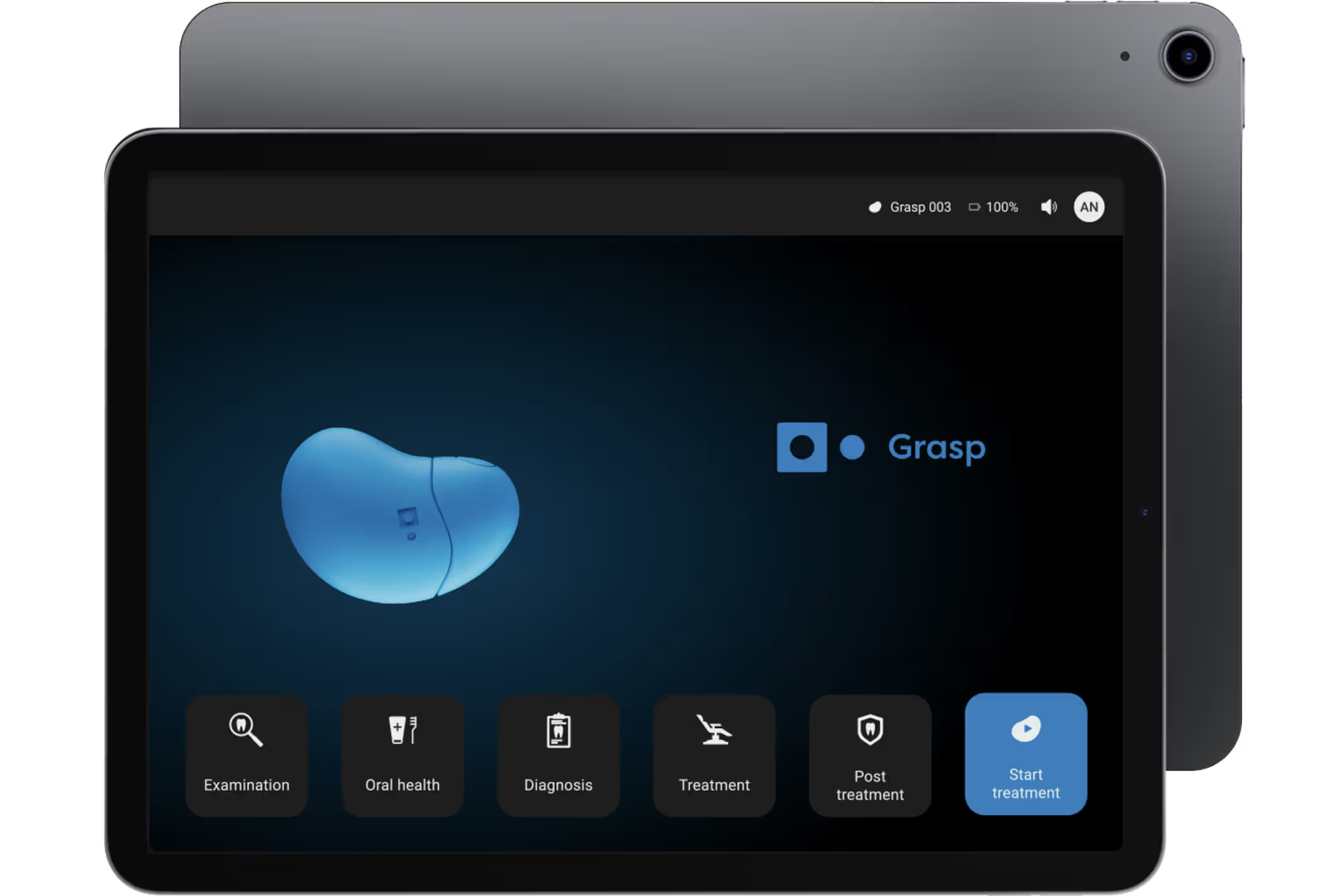
Get to know the Grasp App
On this page you will find a step by step tour of the Grasp App.
Main screen
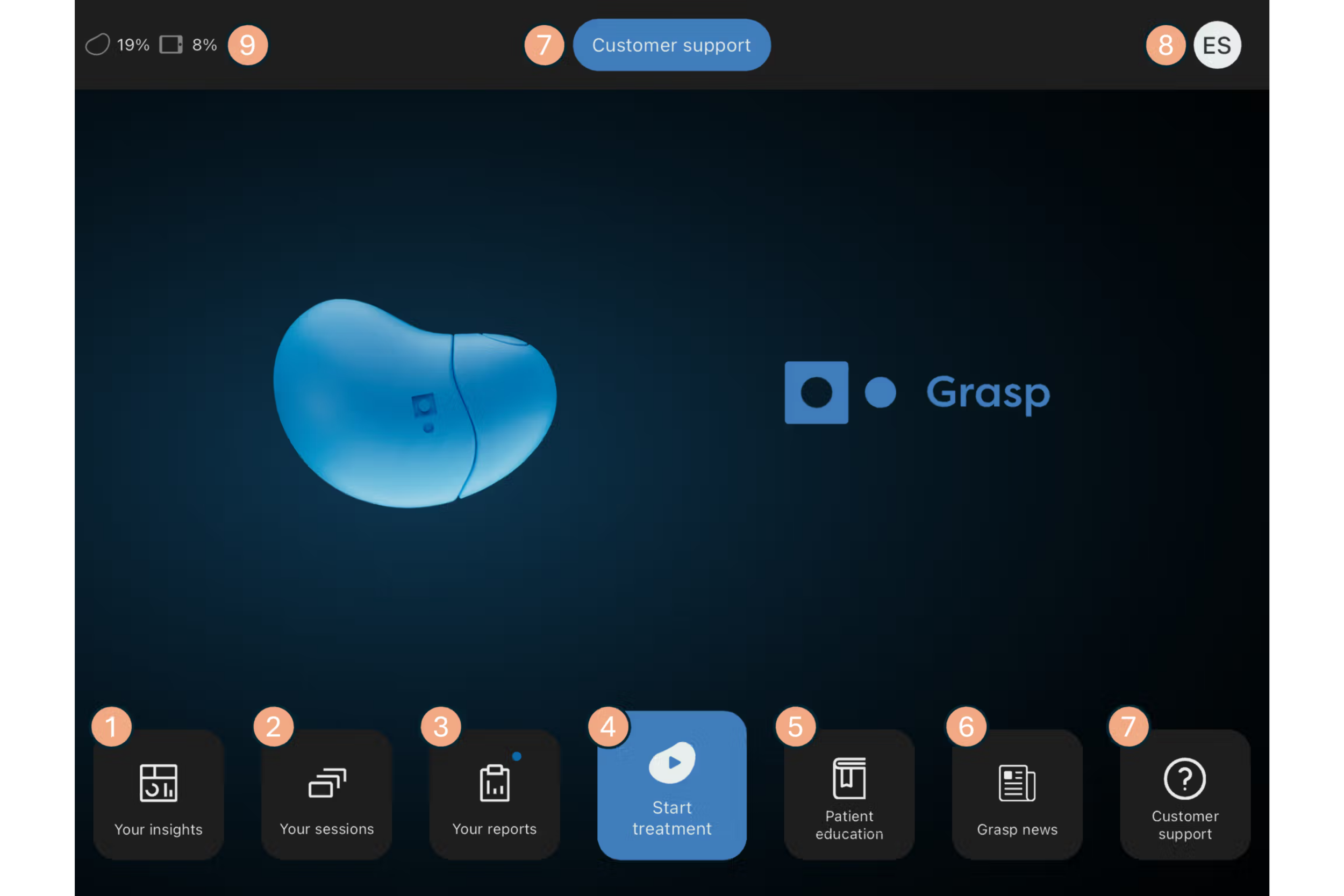
Upon entering the main screen, you can navigate to the following sections:
Your insights – Delve into tailored insights about your sessions, procedures and much more.
Your sessions – Access a summary of all historical sessions.
Your reports – Access reports about all sessions in your clinic.
Start treatment – Commence a new treatment session.
Patient education – Access videos or infographics related to oral health.
Grasp news – Get up to date with the latest news from Grasp.
Customer support – Access customer support and troubleshooting resources.
User Panel – Tailor your software settings and manage user accounts.
Device Status – Monitor the battery status of your Grasp device and tablet.
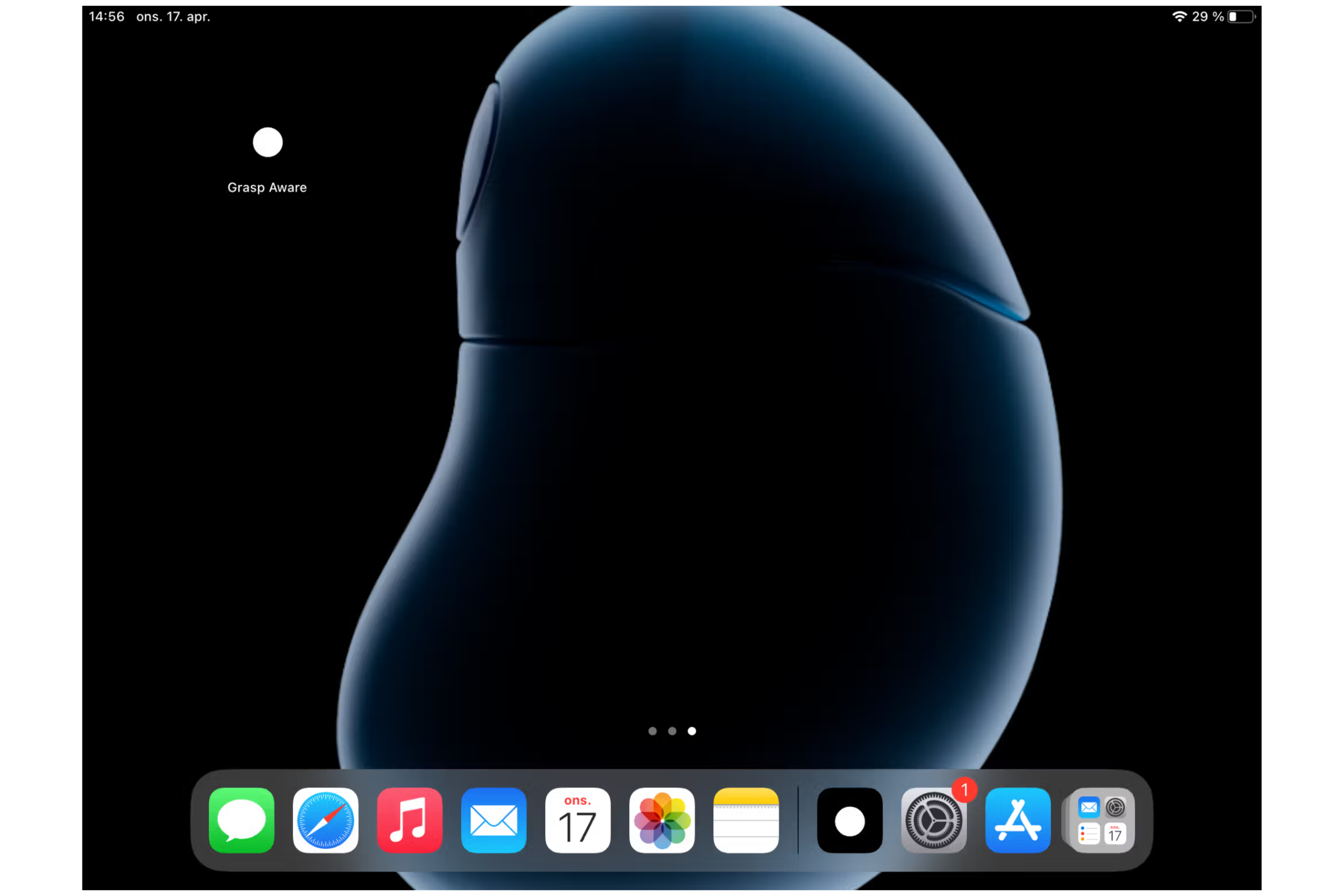
User Panel
Launch the User Panel from the Main Screen.
Modify the application’s language by tapping the flag icon.
Transition between users by selecting an account in the ‘Switch User’ panel.
In the ‘Info’ panel, review device specifics, such as battery level, serial number, and firmware version.
Opt for ‘Disconnect’ to sever the connection with the Grasp unit.
Use ‘Log out’ to exit the active user session.
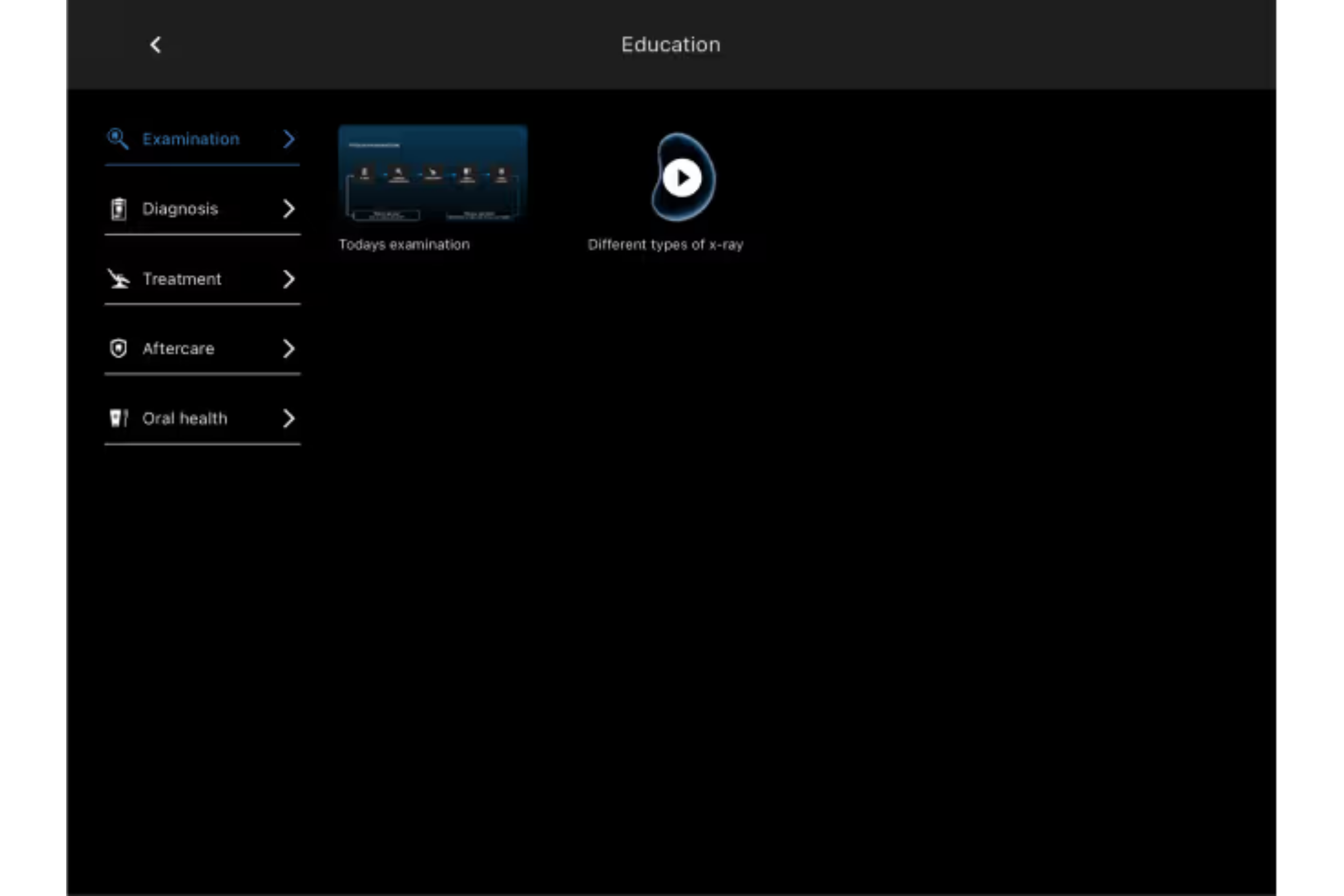
Patient education
Enter the Patient Education section from the Main Screen.
Select from the assortment of educational content available.
Display the chosen video or infographic for patient learning.
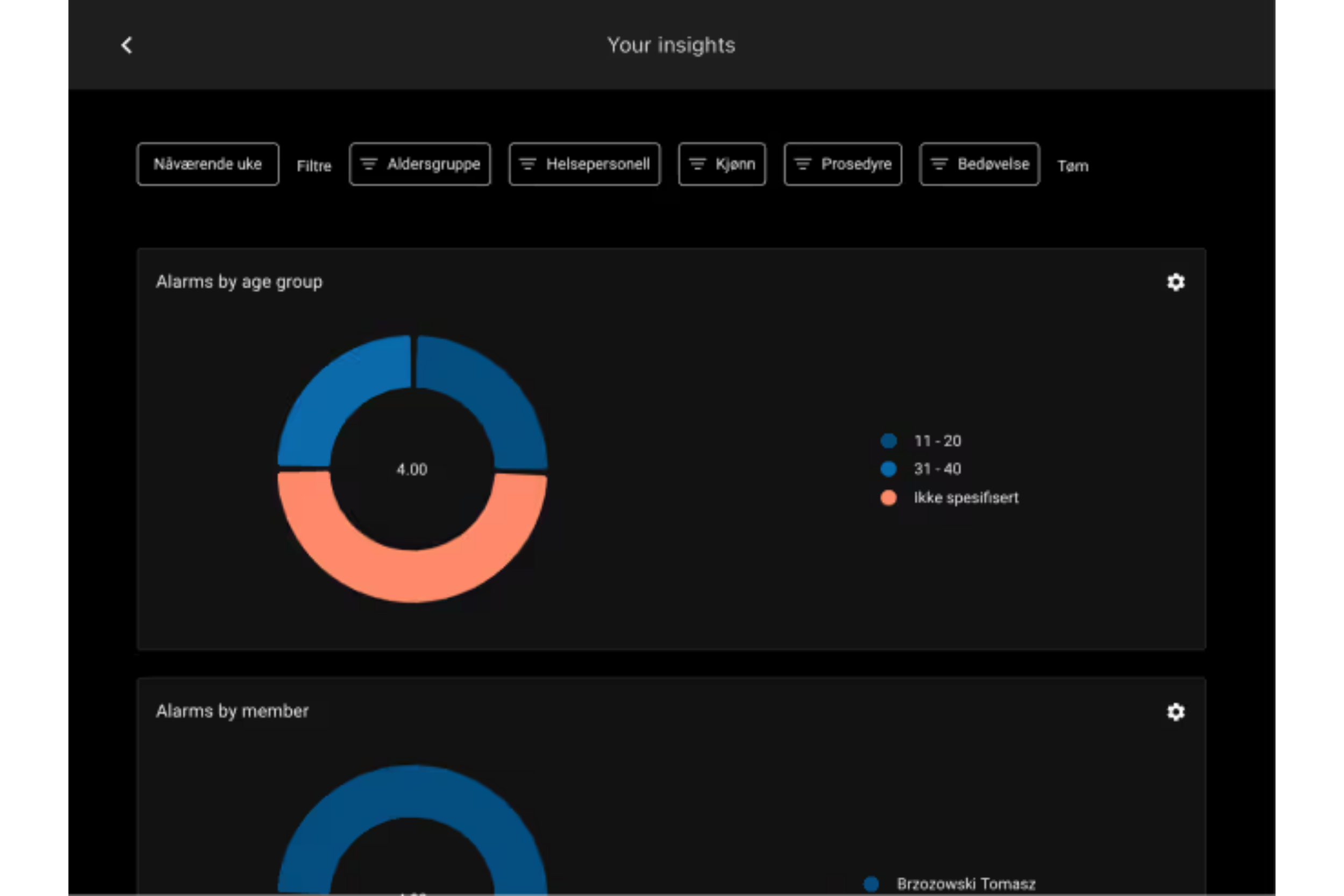
Your insights
Access Your Insights directly from the Main Screen.
Set or modify the period for chart data display. Engage with the data by comparing across different periods or specifying custom dates.
Apply filtering options to examine trends based on patient questionnaires.
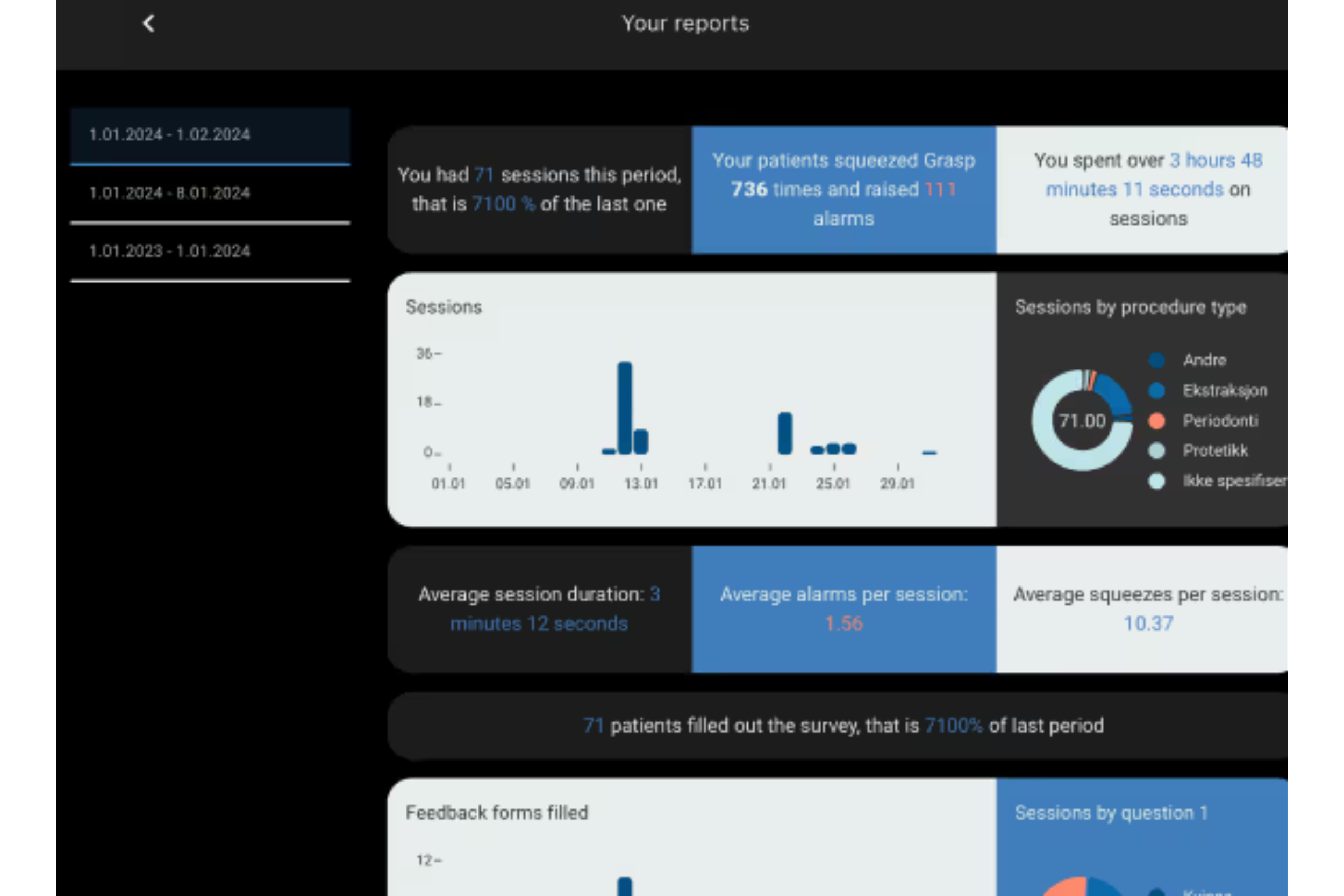
Your reports
Open the Your Reports section from the Main Screen.
In the left column, designate a time period for report generation.
Receive an encompassing report for the chosen time frame, which includes the number of sessions, frequency of use, the average number of alerts per session, and much more.
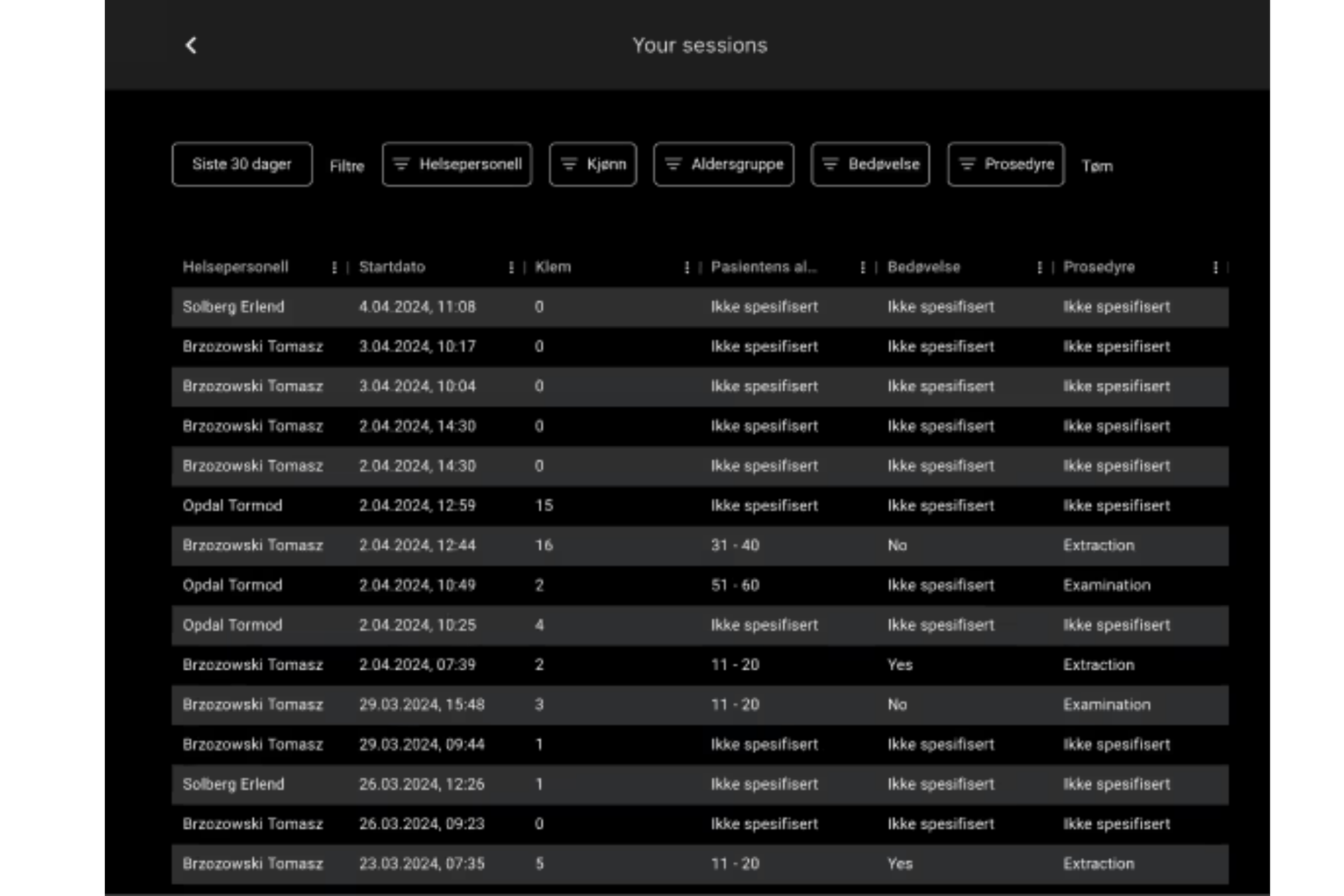
Your sessions
Select “Your Sessions” from the Main Screen.
From the top left corner, choose a time frame for session review (default: Last 30 Days).
This interface delivers a thorough summary of all sessions within the specified time frame.
Implement filters to sort sessions by demographic details or procedure characteristics.
Engage with any session listing to examine its specific details, including timelines, durations, and alerts.
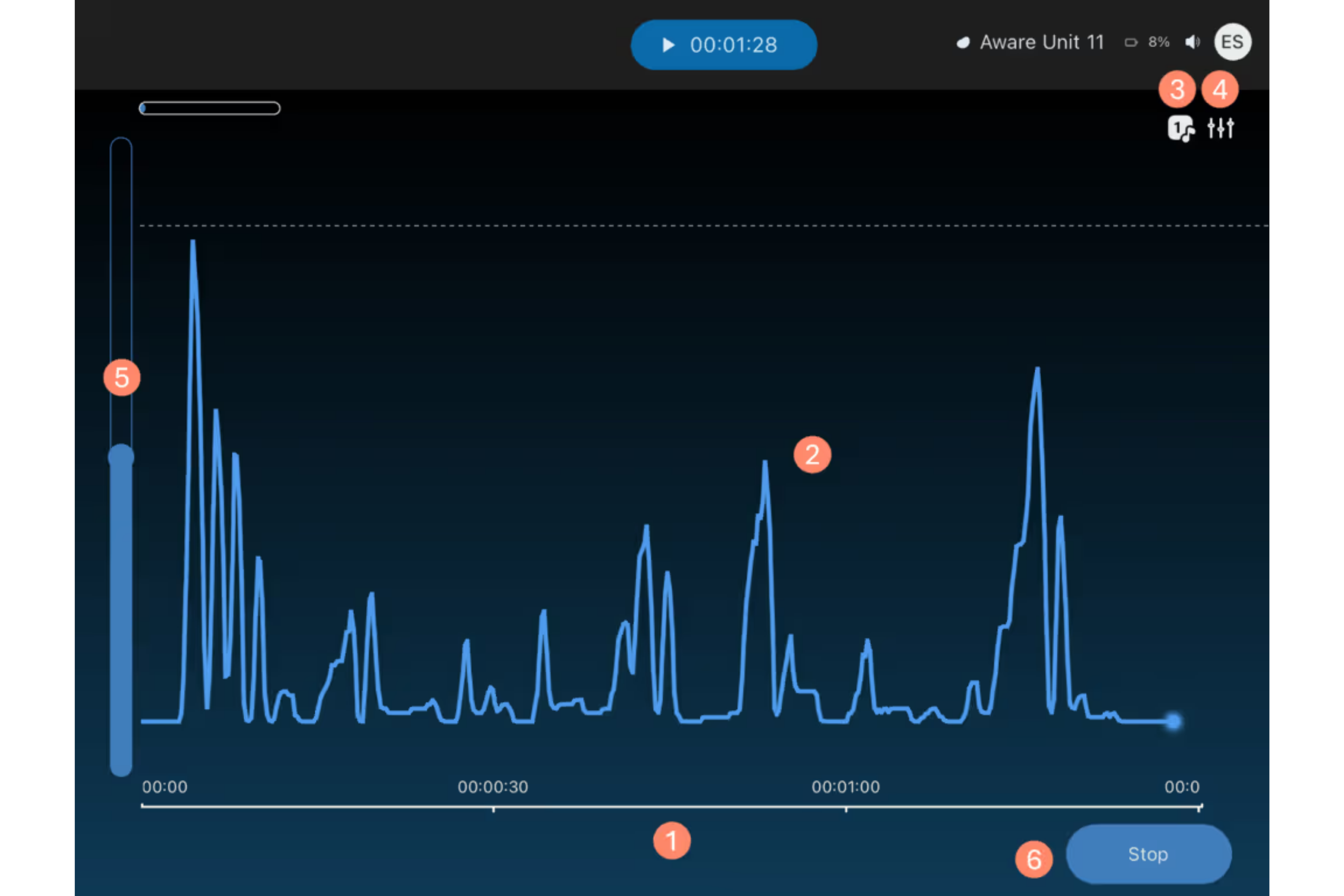
Start treatment
Start a new treatment session by pressing Start Treatment in the Main Screen:
Monitor session duration
Check intensity level based on squeeze duration, strength and quantity
Tap on the icon to switch between predefined sound schemes
Tap on the icon to edit sound schemes in equalizer
If the patient does not have the strength to reach alarm threshold, use the slider to adjust squeeze range
Stop treatment
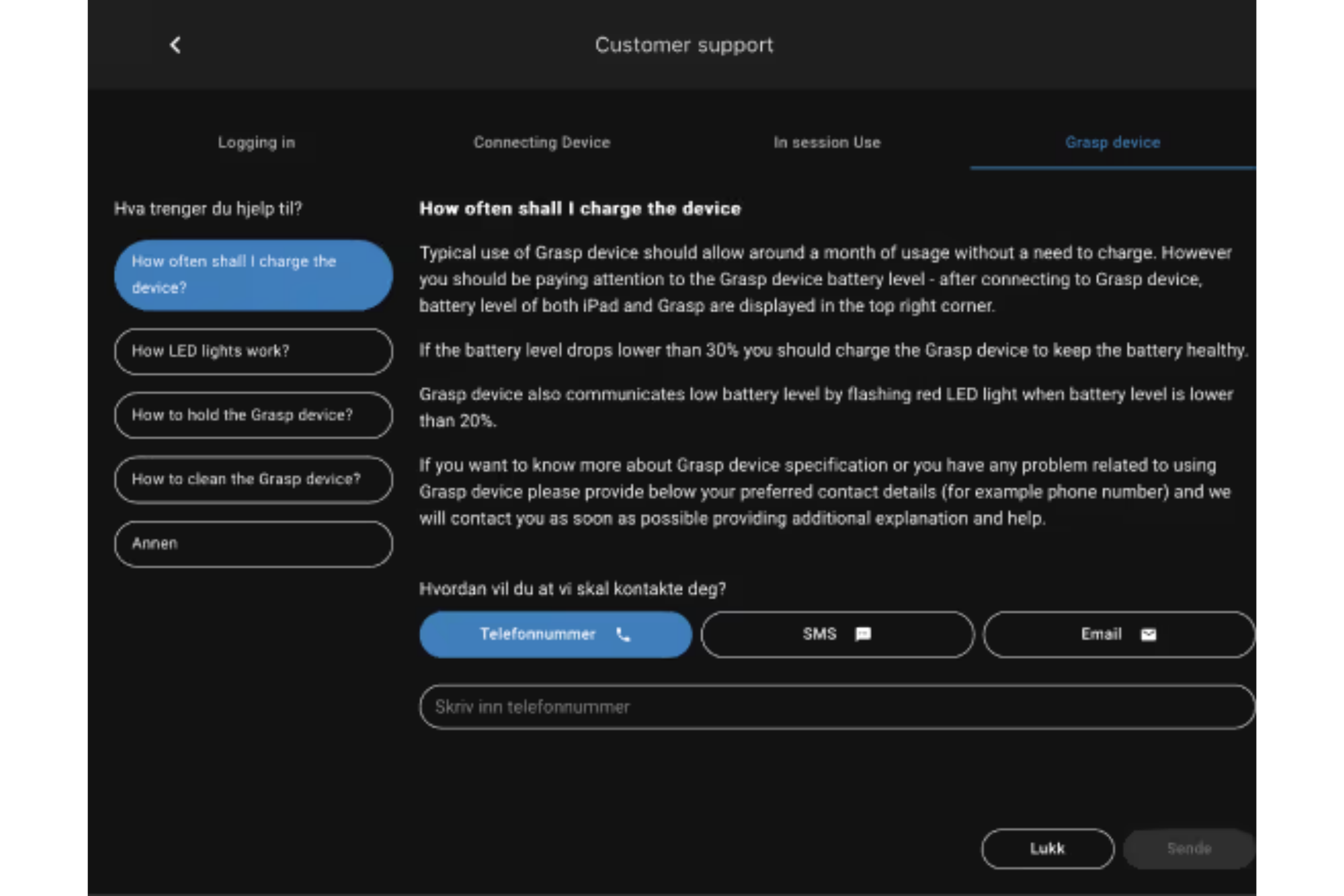
Customer support
Navigate to “Customer Support” from the Main Screen to find assistance tailored to your needs. Options for support are conveniently located at the top of the screen and via the icon at the bottom right.
Utilize the top menu to select the relevant support category for your issue.
The left menu offers a list of common queries and their detailed answers for quick self-service.
If your issue persists, indicate how you would prefer to be contacted—choose from a phone call, SMS, or email—and our support team will reach out to provide personalized assistance.
Get in touch
Whether you're setting up Grasp for the first time or looking to get more out of your device, our team is here to support you.
Contact us for ongoing support or training.
Whatever challenge your patients face, we are here to help them cope with confidence.
-
Grasp was founded by two clinicians who, over years of practice, repeatedly saw the same challenge: patient fear was recognized, but rarely managed in a way that strengthened confidence and lasting trust.
-
By combining clinical insight with proven coping strategies, Grasp gives patients a simple way to express and manage their emotions in real time. Helping them feel safer, more in control, and better supported during care.
-
We collaborate with dental clinics, primary care providers, emergency departments, and hospitals committed to delivering calmer, more confident care.